surfepro_728x90

onclicka_banner_2

uiadportio_728x90

multiwall_728x90

a-ads_728x90

Search This Blog

Popular Posts

Showing posts with label Server. Show all posts

Friday, July 11, 2014

18 Free Ebooks That Will Teach You About Servers

Ever wondered how important Google's servers are to the world? Understand how servers work and you will know.

 It is safe to say that the world right now is running on a bunch of servers. Whether it be Google, Microsoft or any other big technology firm. A click of a mouse results into a request sent to a server, which in turn results in information being sent across to you.

So, as developers and programmers, it is important to learn about servers, their role in computing and how to work with them. Here are resources that will help you do so. Cheers!
servers, computing, Google, Microsoft, Intel, technology, server computing, free ebooks on servers, free server ebooks, best server ebooks, ebooks on servers


Portable and precise, this pocket-sized guide delivers ready answers for managing databases and services in Exchange Server 2013. Zero in on core tasks through quick-reference tables, instructions, and lists. You'll get the focused information you need to save time and get the job done-whether at your desk or in the field.


Nginx is a lightweight HTTP server designed for high-traffic websites, with network scalability as the primary objective. With the advent of high speed Internet access, short loading times and fast transfer rates have become a necessity. This free, open source solution will either come as a full replacement of other software such as Apache, or stand in front of your existing infrastructure to improve its overall speed.

Nginx HTTP Server, 2nd Edition provides a detailed guide to setting up Nginx in different ways that correspond to actual production situations: as a standalone server, as a reverse proxy, interacting with applications via FastCGI and more. In addition, the complete directive reference will be your best friend at all stages of the configuration and maintenance processes.


Get a head start evaluating Windows Server 2012 R2 - with technical insights from a Microsoft MVP and members of the Windows Server product team. Based on final Windows Server 2012 R2 release-to-manufacturing (RTM) software, this guide introduces new features and capabilities, with scenario-based advice on how the platform can meet the needs of your business. Get the high-level overview you need to begin preparing your deployment now.


With a focus on mailbox and high availability features, this book delivers the ultimate, in-depth reference to IT professionals planning and managing an Exchange Server 2013 deployment. Guided by Tony Redmond, a Microsoft MVP and award-winning author, you will: Understand major changes to Exchange Server architecture; Get inside insights for planning your upgrade or deployment; Examine the new web-based Exchange admin center (EAC); Take a deep dive into configuring mailboxes, distribution groups, and contacts; planning and managing the Managed Store; database availability groups; mailbox replication service; compliance, data leakage, and data loss prevention; site mailboxes; modern public folders.


With a focus on connectivity, clients, and unified messaging, this book delivers the ultimate, in-depth reference to IT professionals planning and managing an Exchange Server 2013 deployment. Guided by Paul Robichaux, a Microsoft MVP and popular author, you will: Understand how Exchange Server 2013 works with previous versions; Gain expert insights into supporting clients, mobile devices, and UM; Take a deep dive into front-end servers; certificate and namespace management; transport rules; load balancing; client management, including Microsoft Outlook, Outlook Web App (OWA), and POP3/IMAP4; mobile devices; anti-malware and anti-spam features; Unified Messaging; Microsoft Lync; Office 365; Exchange Online.


Intel Trusted Execution Technology (Intel TXT) is a new security technology that started appearing on Intel server platforms in 2010. This book explains Intel Trusted Execution Technology for Servers, its purpose, application, advantages, and limitations. This book guides the server administrator / datacenter manager in enabling the technology as well as establishing a launch control policy that he can use to customize the server's boot process to fit the datacenter's requirements. This book explains how the OS (typically a Virtual Machine Monitor or Hypervisor) and supporting software can build on the secure facilities afforded by Intel TXT to provide additional security features and functions. It provides examples how the datacenter can create and use trusted pools.


Oracle WebLogic Server 12c Advanced Administration Cookbook guides you through 70 recipes covering from the basics of WebLogic 12c installation, and passing through JDBC, JMS, cluster configuration and tuning. The book covers the day-by-day tasks of a WebLogic Administrator, enhanced with a lot of tips to build a WebLogic production environment focused on stability, high availability and performance.

The best place to start with any book is at the beginning so the first thing that is covered is the basics. This quick refresher should get you back up to speed with WebLogic server and get you in the right frame of mind to get stuck into the more complex techniques.


Microsoft Exchange Server 2013 is a complex messaging system. Windows PowerShell 3 can be used in conjunction with Exchange Server 2013 to automate and manage routine and complex tasks to save time, money, and eliminate errors.

Microsoft Exchange Server 2013 PowerShell Cookbook: Second Edition offers more than 120 recipes and solutions to everyday problems and tasks encountered in the management and administration of Exchange Server. If you want to write scripts that help you create mailboxes, monitor server resources, and generate detailed reports, then this Cookbook is for you.

This practical guide to Powershell and Exchange Server 2013 will help you automate and manage time-consuming and reoccurring tasks quickly and efficiently. Starting by going through key PowerShell concepts and the Exchange Management Shell, this book will get you automating tasks that used to take hours in no time.


Virtualization is the present and the future of the technological world and to keep up with the latest trends is critical for all of us. With cloud technology gaining popularity day by day it is important to get familiar with the basics and move quickly to a practical implementation. Citrix is one of the leading virtualization and cloud technology vendors and the number one choice of experts around the globe.

Implementing Citrix XenServer Quick Starter is a practical, hands-on guide which will walk you through a series of steps from the initial installation of Citrix XenServer to more advanced topics and enables you to readily build your own virtual environments.


The client server or Tuxedo has existed for the past few decades and it is expanding every day! Today, Service Oriented Architecture (SOA) or Service Component Architecture (SCA) are considered to be the new approaches to build client server architecture, Tuxedo adopts this concept and can be extended very easily.

Getting Started with Oracle Tuxedo shows how to develop distributed systems using Tuxedo and extend that to SOA or even a Cloud environment.


Learn how to work with PostgreSQL as if you spent the last decade working on it. PostgreSQL is capable of providing you with all of the options that you have in your favourite development language and then extending that right on to the database server. With this knowledge in hand, you will be able to respond to the current demand for advanced PostgreSQL skills in a lucrative and booming market.

PostgreSQL Server Programming will show you that PostgreSQL is so much more than a database server. In fact, it could even be seen as an application development framework, with the added bonuses of transaction support, massive data storage, journaling, recovery and a host of other features that the PostgreSQL engine provides.


In the present day information-centric world we live in, the success of an enterprise depends enormously on how its information is generated, handled, and disseminated. With ample screenshots and over 65 hands-on exercises, this book will guide you effortlessly through creating cutting edge reports using SQL Server Reporting Services 2012, native and fully integrated with SharePoint Server 2010 including new features like Power View and Data Alerts.

Learning SQL Server Reporting Services 2012 will get you started right from installation and then move on to configuration of SQL Server Reporting Services 2012.


JBoss Application Server meets high standards of reliability, efficiency, and robustness, and is used to build powerful and secure Java EE applications. It supports the most important areas of Java Enterprise programming including EJB 3.1, Contexts and Dependency Injection, JAX-WS and JAX-RS web services, the security framework, and more. Getting started with JBoss application server development can be challenging; however, with the right approach and guidance, you can easily master it and this book promises that.


Automating server tasks allows administrators to repeatedly perform the same, or similar, tasks over and over again. With PowerShell scripts, you can automate server tasks and reduce manual input, allowing you to focus on more important tasks.

Windows Server 2012 Automation with PowerShell Cookbook will show several ways for a Windows administrator to automate and streamline his/her job. Learn how to automate server tasks to ease your day-to-day operations, generate performance and configuration reports, and troubleshoot and resolve critical problems.


CentOS is a community-based enterprise class operating system and this book will provide a series of practical solutions that will not only show you how to install and maintain CentOS as a server, but to explore this well-known Linux distribution with the intention of tackling many common issues by providing some tricks of the trade in order to simplify the task of building a server.

CentOS 6 Linux Server Cookbook is a practical guide to installation, configuration, administration, and maintenance. This is a one-stop-shop to all things CentOS, so regardless as to whether you need a mail server, web server, database server, domain server or a file sharing platform, this book provides a comprehensive series of starting points that will give you direct access to the inner workings of this open source, community-based enterprise server.


Create dynamic business intelligence (BI) solutions for SharePoint faster and with more capabilities than previously possible. With this book, you'll learn the entire process - from high-level concepts to development and deployment - for building data-rich BI applications with Visual Studio LightSwitch, SQL Server 2012, and a host of related Microsoft technologies.

You'll learn practical techniques and patterns necessary to use all of these technologies together as you build an example application through the course of the book, step by step. Discover how to solve real problems, using BI solutions that will evolve to meet future needs.


Prepare for Exam 70-331 - and help demonstrate your real-world mastery of Microsoft SharePoint Server 2013 core solutions. Designed for experienced IT professionals ready to advance their status, Exam Ref focuses on the critical-thinking and decision-making acumen needed for success at the MCSE level.


This 70-411 Administering Windows Server 2012 textbook covers the second of three exams required for Microsoft Certified Solutions Associate (MCSA): Windows Server 2012 certification. This course will help validate the skills and knowledge necessary to administer a Windows Server 2012 Infrastructure in an enterprise environment. The three MCSA exams collectively validate the skills and knowledge necessary for implementing, managing, maintaining, and provisioning services and infrastructure in a Windows Server 2012 environment. This Microsoft Official Academic Course is mapped to the 70-411 Administering Windows Server 2012 exam objectives. This textbook focuses on real skills for real jobs and prepares students to prove mastery of core services such as user and group management, network access, and data security.

Thursday, December 26, 2013

Installing Windows Server 2008 Core

  Windows Server 2008 Server Core installation provides a minimal environment for running specific server roles, which reduces the maintenance and management requirements and the attack surface for those server roles. The advantages of Server Core are: security improvement (reduced attack surface), needs less system resources (occupies only one third disk space), patching is easier, boots up faster.

A server running a Server Core installation supports the following server roles:
  • Active Directory Domain Services (AD DS)
  • Active Directory Lightweight Directory Services (AD LDS)
  • DHCP Server
  • DNS Server
  • File Services
  • Print Services
  • Streaming Media Services
  • Internet Information Services (IIS)
  • Windows Virtualization

In Windows Server 2008,  Server Core installation does not include the traditional full graphical user interface (GUI). You can read more about how to locally and remotely manage Server Core machines by reading the list of articles in the Related Articles section at the bottom of this page.
Installing Server Core is pretty straightforward, but I thought I'd list the necessary steps here for additional information. However, please note the following:
  • There is no way to upgrade from a previous version of the Windows Server operating system to a Server Core installation. Only a clean installation is supported.
  • There is no way to upgrade from a full installation of Windows Server 2008 to a Server Core installation. Only a clean installation is supported.
  • There is no way to upgrade from a Server Core installation to a full installation of Windows Server 2008. If you need the Windows® user interface or a server role that is not supported in a Server Core installation, you will need to install a full installation of Windows Server 2008.

Follow this procedure to install a Server Core installation of Windows Server 2008:

1. Insert the appropriate Windows Server 2008 installation media into your DVD drive. If you don't have an installation DVD for Windows Server 2008, you can download one for free from Microsoft's Windows 2008 Server Trial website.

2. Reboot the computer.

3. When prompted for an installation language and other regional options, make yourlanguage selection and press Next.

4. Next, press Install Now to begin the installation process.

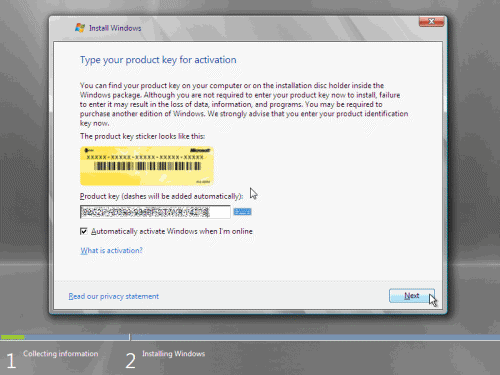
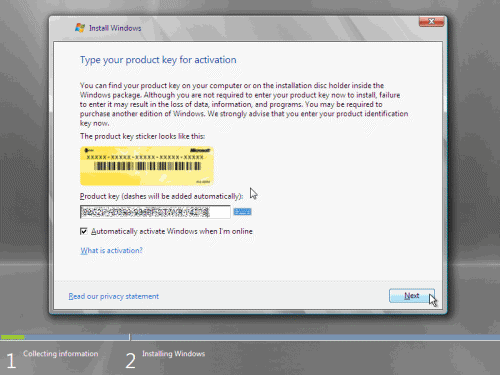
5. Enter your Product ID in the next window, and if you want to automatically activate Windows the moment the installation finishes, click Next.

If you do not have the Product ID available right now, you can leave the box empty, and clickNext. You will need to provide the Product ID later, after the server installation is over. PressNo.

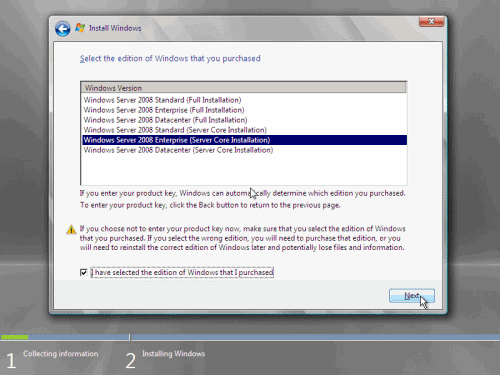
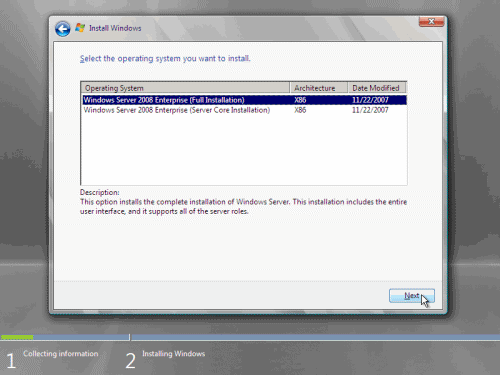
6. Because you did not provide the correct ID, the installation process cannot determine what kind of Windows Server 2008 license you own, and therefore you will be prompted to selectyour correct version in the next screen, assuming you are telling the truth and will provide the correct ID to prove your selection later on.

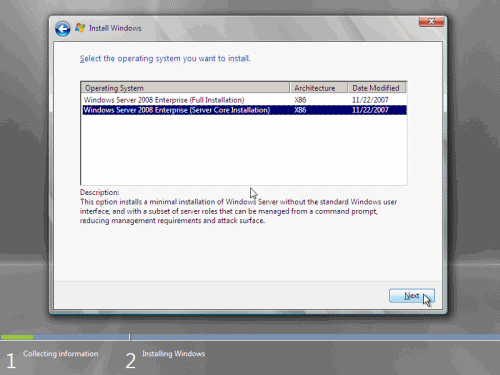
7. If you did provide the right Product ID, select the Windows Server 2008 - Server Core Installation, and click Next.

8. Read and accept the license terms by clicking to select the checkbox and pressing Next.

9. In the "Which type of installation do you want" window, click the only available option –Custom (Advanced).

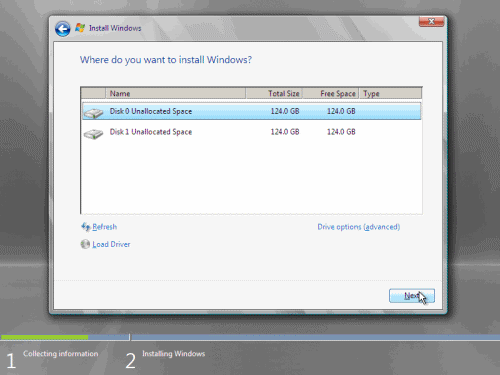
10. In the "Where do you want to install Windows", if you're installing the server on a regular IDE hard disk, click to select the first disk, usually Disk 0, and click Next.


If you're installing on a hard disk that's connected to a SCSI controller, click Load Driver and insert the media provided by the controller's manufacturer.
If you're installing in a Virtual Machine environment, make sure you read the "Installing the Virtual SCSI Controller Driver for Virtual Server 2005 on Windows Server 2008" article.
If you must, you can also click Drive Options and manually create a partition on the destination hard disk.
11. The installation now begins, and you can go and have lunch. The time it takes to install server core is significantly shorter than installation of a full server, so don't eat heavily…

The installation process will reboot your computer, so, if in step #10 you inserted a floppy disk (either real or virtual), make sure you remove it before going to lunch, as you'll find the server hanged without the ability to boot (you can bypass this by configuring the server to boot from a CD/DVD and then from the hard disk in the booting order on the server's BIOS)
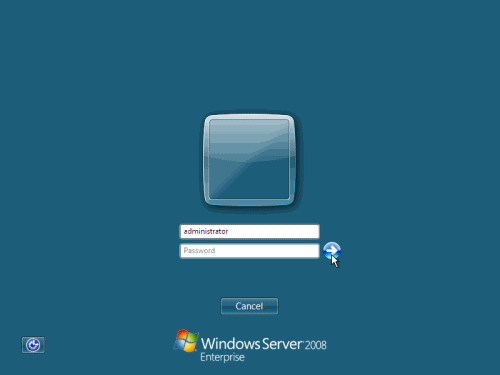
12. Then the server reboots you'll be prompted with the new Windows Server 2008 type of login screen. Press CTRL+ALT+DEL to log in.

13. Click on Other User.

14. The default Administrator is blank, so just type Administrator and press Enter.

15. You will be prompted to change the user's password. You have no choice but to press Ok.

16. In the password changing dialog box, leave the default password blank (duh, read step #15…), and enter a new, complex, at-least-7-characters-long new password twice. A password like "topsecret" is not valid (it's not complex), but one like "T0pSecreT!" sure is. Make sure you remember it.

17. Someone thought it would be cool to nag you once more, so now you'll be prompted to accept the fact that the password had been changed. Press Ok.


18. You will then notice how, incredibly, Windows creates the user profile and prepares for the first logon. The Preparing your desktop message appears for a few moments, which is quite funny, mostly because there IS NO DESKTOP in server core…


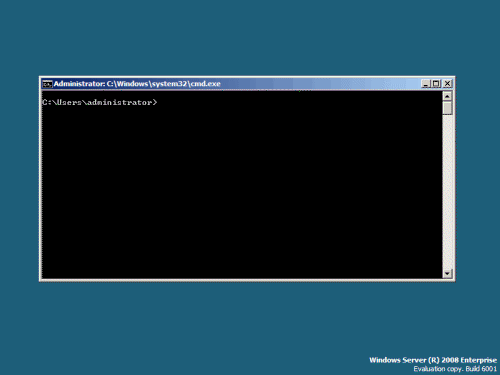
19. Finally, the command prompt appears and that's it, you're logged on and can begin working.


Wednesday, December 25, 2013

Installing Windows Server 2008 R2 Step by Step With ScreenShots Guide

Installing Windows Server 2008 is pretty straightforward and is very much like installing Windows Vista, but I thought I'd list the necessary steps here for additional information. For those of you who have never installed Vista before, the entire installation process is different than it used to be in previous Microsoft operating systems, and notably much easier to perform.
Using Vista's installation routine is a major benefit, especially for a server OS. Administrators can partition the system's hard drives during setup. More importantly, they can install the necessary AHCI or RAID storage drivers from a CD/DVD or even a USB thumb drive. Thus, error-prone floppies can finally be sent to the garbage bin.

Note:   Windows Server 2008 can also be installed as a Server Core installation, which is a cut-down version of Windows without the Windows Explorer GUI. Because you don’t have the Windows Explorer to provide the GUI interface that you are used to, you configure everything through the command line interface or remotely using a Microsoft Management Console (MMC). The Server Core can be used for dedicated machines with basic roles such as Domain controller/Active Directory Domain Services, DNS Server, DHCP Server, file server, print server, Windows Media Server, IIS 7 web server and Windows Server Virtualization virtual server. For Server Core installations please see my "Installing Windows Server 2008 Core" article.
To use Windows Server 2008 you need to meet the following hardware requirements:

Component Requirement

Processor• Minimum: 1GHz (x86 processor) or 1.4GHz (x64 processor)
• Recommended: 2GHz or faster Note: An Intel Itanium 2 processor is required for Windows Server 2008 for Itanium-based Systems


Memory• Minimum: 512MB RAM
• Recommended: 2GB RAM or greater
• Maximum (32-bit systems): 4GB (Standard) or 64GB (Enterprise and Datacenter)
• Maximum (64-bit systems): 32GB (Standard) or 2TB (Enterprise, Datacenter and Itanium-based Systems)


Available Disk Space• Minimum: 10GB
• Recommended: 40GB or greater


 Note: Computers with more than 16GB of RAM will require more disk space for paging, hibernation, and dump files
Drive    DVD-ROM drive
Display and Peripherals • Super VGA (800 x 600) or higher-resolution monitor
 • Keyboard
 • Microsoft Mouse or compatible pointing device


If you are currently running:
You can upgrade to:
Windows Server 2003 Standard Edition (R2, Service Pack 1 or Service Pack 2)
Full Installation of Windows Server 2008 Standard Edition
Full Installation of Windows Server 2008 Enterprise Edition

Windows Server 2003 Enterprise Edition (R2, Service Pack 1 or Service Pack 2)
Full Installation of Windows Server 2008 Enterprise Edition
Windows Server 2003 Datacenter Edition (R2, Service Pack 1 or Service Pack 2)
Full Installation of Windows Server 2008 Datacenter Edition

Upgrade notes:

I will not discuss the upgrade process in this article, but for your general knowledge, the upgrade paths available for Windows Server 2008 shown in the table below:

Follow this procedure to install Windows Server 2008:

1. Insert the appropriate Windows Server 2008 installation media into your DVD drive. If you don't have an installation DVD for Windows Server 2008, you can download one for free from Microsoft's Windows 2008 Server Trial website.

2. Reboot the computer.

3. When prompted for an installation language and other regional options, make your selection and press Next.

4. Next, press Install Now to begin the installation process.

5. Product activation is now also identical with that found in Windows Vista. Enter yourProduct ID in the next window, and if you want to automatically activate Windows the moment the installation finishes, click Next.

If you do not have the Product ID available right now, you can leave the box empty, and click Next. You will need to provide the Product ID later, after the server installation is over. Press No.

6. Because you did not provide the correct ID, the installation process cannot determine what kind of Windows Server 2008 license you own, and therefore you will be prompted to select your correct version in the next screen, assuming you are telling the truth and will provide the correct ID to prove your selection later on.

7. If you did provide the right Product ID, select the Full version of the right Windows version you're prompted, and click Next.


8. Read and accept the license terms by clicking to select the checkbox and pressing Next.

9. In the "Which type of installation do you want?" window, click the only available option –Custom (Advanced).

10. In the "Where do you want to install Windows?", if you're installing the server on a regular IDE hard disk, click to select the first disk, usually Disk 0, and click Next.

If you're installing on a hard disk that's connected to a SCSI controller, click Load Driver and insert the media provided by the controller's manufacturer.
If you're installing in a Virtual Machine environment, make sure you read the "Installing the Virtual SCSI Controller Driver for Virtual Server 2005 on Windows Server 2008"
If you must, you can also click Drive Options and manually create a partition on the destination hard disk.
11. The installation now begins, and you can go and have lunch. Copying the setup files from the DVD to the hard drive only takes about one minute. However, extracting and uncompressing the files takes a good deal longer. After 20 minutes, the operating system is installed. The exact time it takes to install server core depends upon your hardware specifications. Faster disks will perform much faster installs… Windows Server 2008 takes up approximately 10 GB of hard drive space.

The installation process will reboot your computer, so, if in step #10 you inserted a floppy disk (either real or virtual), make sure you remove it before going to lunch, as you'll find the server hanged without the ability to boot (you can bypass this by configuring the server to boot from a CD/DVD and then from the hard disk in the booting order on the server's BIOS)
12. Then the server reboots you'll be prompted with the new Windows Server 2008 type of login screen. Press CTRL+ALT+DEL to log in.

13. Click on Other User.

14. The default Administrator is blank, so just type Administrator and press Enter.

15. You will be prompted to change the user's password. You have no choice but to press Ok.

16. In the password changing dialog box, leave the default password blank (duh, read step #15…), and enter a new, complex, at-least-7-characters-long new password twice. A password like "topsecret" is not valid (it's not complex), but one like "T0pSecreT!" sure is. Make sure you remember it.

17. Someone thought it would be cool to nag you once more, so now you'll be prompted to accept the fact that the password had been changed. Press Ok.

18. Finally, the desktop appears and that's it, you're logged on and can begin working. You will be greeted by an assistant for the initial server configuration, and after performing some initial configuration tasks, you will be able to start working.

Saturday, November 2, 2013

11 Uses for an Old PC

You've finally gone and bought a new PC. It has a boatload of memory, lots of cores, and a fast, modern graphics card. But now your old computer sits in a corner, and although you know it's just a machine, it seems to be sulking like a puppy that missed its morning biscuit. It's weird, but you feel guilty with the whole idea of throwing it out.
After all, it's perfectly functional. When you first bought it, it was near state-of-the-art. If your new PC replaces one that's really on its last legs, by all means, take it to a reputable electronics recycler. But it's amazing how many users ditch perfectly good machines when they pick up a shiny new system.
You can do plenty of things with an old PC besides sending it to the recycling heap. Let's take a look at a few ways you might put that old system to work.

1. Convert It Into a NAS or Home Server

If you're running a home network and have multiple users--you, your spouse, your kids--reuse as network-attached storage or even as an actual server may be just the ticket for an old system.

You can turn your old PC into a network-attached storage device with FreeNAS.

However, it's not just a matter of plugging an old PC into a network connection and starting it up. Most desktop systems aren't configured to be effective servers or storage systems. For one thing, they probably use too much power. You'll want to set BIOS power management to run cooling fans in quiet mode, if that option exists. You'll also need to set up the operating system so that it doesn't shut down at inconvenient times, yet run in a low power state when it's not being actively used.
Bear in mind that you'll probably want to run your server "headless" (that is, without a monitor), and sans keyboard and mouse as well. While you'll need a display and input devices for the initial setup, make sure the system will work properly without them. Having a scheduled reboot hang because the system halted during startup (it couldn't find a keyboard, perhaps) is annoying, to say the least.
Also, the operating system is likely not well suited for storage applications, particularly for multiple users. While Windows XP, Vista, or Windows 7 can function well as a storage repository for a couple of users, you'll want to take the time to create user accounts for each person who might need access. In some cases, you may want to set storage quotas.

You could also use Windows Home Server, but it'll cost over $100.

A better solution would be to install a proper network operating system. One choice is Windows Home Server. However, that will cost you somewhat north of $100, and WHS may prefer newer hardware. An alternative is FreeNAS.
FreeNAS is open-source software designed to turn a PC into a network-attached storage device. It's based on FreeBSD, a UNIX variant. If you're uncertain whether you want to commit to an unfamiliar OS, FreeNAS can be downloaded as a LiveCD version. This is an ISO file which, when burned to a CD, will boot off an optical drive and run completely from memory. You can keep your old OS on the hard drive until you determine if FreeNAS is suited to your needs.

2. Donate It to a Local School

If your PC isn't too archaic, consider donating it to a local school or daycare center. Worst case, it could go to the high school computer lab (most schools have one) and be used as a test bed, to take apart and reassemble. Alternatively, the school district computer services group might use it for parts, though it's been my experience that many school district IT groups tend to shy away from used gear, given the unknown pedigree or wear of older hardware.
If you donate it to a daycare or child development center, consider buying some low-cost educational software packages and preinstalling them before handing the system over. Also, as with selling a system, you'll want to remove all software that you've reinstalled on your new PC. And make sure to include all license information for the software you're preinstalling on the old system.

3. Turn It Into an Experimental Box


Try out Ubuntu, the most popular Linux distro. (Image courtesy of Wikimedia Commons.)

You've heard about this Linux thing, and maybe you'd like to give it a whirl. But the thought of trying to create a dual-boot system on your primary PC leaves you a little green around the gills. Now you can experiment to your heart's content on your old box.
Check out Ubuntu, the sexy Linux distro that geeks love to, well, love. The neat thing about Linux is all the built-in support for older hardware, so installation is usually easy. In fact, installing Ubuntu is sometimes simpler than installing Windows. And there's a wealth of free software for Linux just waiting to be tried out.
In Video: How to Install Ubuntu on Any PC
If you think you've got the tech savvy and a bent for tinkering, you might try creating aHackintosh--a PC that can run MacOS X. It can be done, but it does take a fair amount of effort. The main hackintosh site is a good place to start, but expect a long and somewhat bumpy trip. Oh, and you'll have to pony up a few bucks for a legal copy of MacOS X.
In addition, a number of true UNIX-based operating systems are available, ranging from FreeBSD or PC-BSD (based on the Berkeley UNIX version) to OpenSolaris, based on the Sun Microsystems version of UNIX.

4. Give It to a Relative

I do this all the time. My brother-in-law has modest computing needs. So I'll often just hand over one of my two-year old PCs, though I'll usually drop in a midrange or entry-level graphics card.
I don't generally recommend doing this with your kids, though--at least, not if your kids are like mine. They often need as much or more PC horsepower than I use on a regular basis (outside of gaming and photography, anyway). My older daughter is a dedicated photographer, and makes heavy use of Photoshop, while my younger daughter has become a pretty hard-core gamer (she recently asked for a copy of Borderlands for her birthday).
Giving a system to family members can be fraught with peril, though. That's because you are now the go-to person for tech support. So you've been warned: Give a PC to a friend or relative, and you're now on call. Don't worry, though--we've got you covered in "How to Fix Your Family's PC Problems."
One thing you'll definitely want to do is completely erase the hard drive and reinstall the OS from scratch. If it's an off-the-shelf system from a major manufacturer, restoring it to its original condition from the restore partition or restore disc accomplishes the same thing.
In Video: How to Completely Erase Your Hard Drive

5. Dedicate It to Distributed Computing


Use your PC to fold some proteins with Folding@Home.

Want to do a little good for humanity? How about dedicating your old PC to one of the various public distributed computing projects?
The best known is probably Folding@Home. Folding@Home uses computing resources from all over the world to help study protein folding, an essential element to understanding how many diseases operate. If your old PC has a fairly new graphics card, that hardware can often pitch in as well, and offer up even more computing resources. Other distributed computing ventures include:

6. Use It as a Dedicated Game Server


Set your PC up as a dedicated server for classics like Freelancer.

Do you have a favorite multiplayer game? If so, check and see if it's a game where you can host a server on a local computer--you might consider making your old system a dedicated game server. Most multiplayer games capable of playing online often support dedicated servers. I ran a Civilization 4 "pitboss" server for a few months, and Desktops Editor Nate Ralph is in the process of setting up a PCWorld Minecraft server.

Team Fortress 2 also supports dedicated servers.

The neat thing about many of these dedicated game servers is how little system horsepower they actually need. I ran a Freelancer server on an old Pentium 4 laptop system, at times supporting eight simultaneous users, with no performance issues.

7. Use It for Old-School Gaming

Related to the idea of using an older system as a dedicated game server, consider repurposing that box for old school gaming. You can go as nuts as you want. For example, install Windows 98, so you can run those older Windows 95 and DOS games, if you have a bunch around. Note that this isn't as necessary as it used to be. Online services like Steam and Impulse are offering older games that have been rewritten to work under newer operating systems, and DOSBox lets you emulate a legacy DOS environment to get your classic gaming fix.
Perhaps the most complete site for older PC games is Good Old Games. GoG, as it's often called, offers a large number of older titles, all of which work fine under newer operating systems. So if you've always wanted to go back and play Planescape: Torment , now is your chance.

Relive the arcade game's glory days with MAME. Don't worry about running out of quarters.

If you want to go really old school, install MAME (multiple arcade machine emulator) software. That will allow you to play arcade games and games written for older game consoles, provided you have access to the ROMs and other related files to run the games. MAME can become a gigantic time sink (albeit a very fun one), so you've been warned!

8. Make It a Secondary Computing Server

If you're a content creator using a title like 3dsmax, Adobe After Effects or Sony Vegas, having another PC to help with distributed rendering chores can greatly speed up final renders for complex projects.
Each application handles distributed rendering a little differently, so you'll need to consult your documentation. But typically, you'll install a lightweight application on the secondary rendering system, which will take data and commands from the primary system and then return results when done. The main application on your production system, or a separate manger app, manages the rendering across multiple networked systems.

9. Set It Up as a Light-Duty 'Living Room' PC

We have a small PC in our living room that's often used for quick Web surfing and to check e-mail. Occasionally, our kids will come down and do homework on the communal PC when they get tired of being cooped up in their rooms. This can work particularly well if you have networked storage somewhere in the house, so people can get to their files whether they're on a personal system or a communal one.
If you do have this type of communal PC, your first inclination might be to create separate accounts for each person. I've found this isn't really necessary. Since it's communal, no one really keeps private information on it.
The flip side is that you'll want security software that's as bullet-proof as possible. Since you have multiple users on one system, eventually someone, sometime, will hit a Web site that may attempt to download a Trojan horse or other malware.

10. Salvage It!

If you have a do-it-yourself bent and build your own systems, you may reduce the cost of your new system by salvaging parts from the old one. Good candidates for salvage include the case (if it's not a proprietary, prebuilt system), the optical drive, the power supply, and, sometimes, the memory modules.
Depending on how much you actually reuse, the distinction between new system and one that's simply been upgraded is a hazy one. If you replace the motherboard, CPU, memory, and primary hard drive, but keep the case, power supply, optical drive, and graphics card, is that a new system, or one that's been upgraded?
That will still leave you with a few old parts. Which brings us to our final point.

11. Sell It

Somewhere on eBay, someone is looking for a computer. They may not be able to afford a new PC, or are looking for a second PC for the family. Your old PC, at the right price, may be just what they need. Assuming it all goes smoothly, everyone wins: You unload your old hardware, which finds a good home with a new user who can appreciate it.
However, it's not as simple as selling it at a garage sale. For one thing, scammers cruise both Craigslist and eBay, looking to convince unwary buyers to take deposits that mysteriously vanish when you try to cash them. Always be suspicious of anyone who wants to use Western Union and has an overseas address.
My general rule of thumb is to stick to selling locally (if it's Craigslist) and only in the United States, if its eBay (since I live in the U.S.). Also, using an escrow site like Paypal (required for eBay anyway), gives you a sense of security, though clever scammers still manage to take advantage of Paypal. Read "How To Sell Your PC and Other Gadgets" for more tips on selling your old tech gear.
As we've seen, an old computer can have many uses, particularly if it's still in good working condition. And not all uses for a PC require quad-core systems with high-end graphics. So if that old system is sitting in a closet somewhere, dig it out and put it to use. Who knows? It might be your PC that identifies the signal that's the first sign of intelligent life outside our planet.

Featured Post

Biggest mysteries in the Universe

The Universe is a mysterious place. Here are some of the biggest mysteries, quandaries and secrets about space that remain unsolved.   From ...

Contact Form

Name

Email *

Message *

hilltopads_vast3

Autoplay VAST 3.0 Ad

surfepro_mobile