surfepro_728x90

onclicka_banner_2

uiadportio_728x90

multiwall_728x90

a-ads_728x90

Search This Blog

Popular Posts

Showing posts with label Windows. Show all posts

Friday, July 11, 2014

Unbeatable Vulnerability Scanners!

Go on and check those vulnerabilities in your system. Stay safe!

With efficient technology comes the issue of safety and security. Even as technology around us improves drastically, unsolicited vulnerabilities that might creep in have grown smarter and way difficult to detect. Detecting vulnerabilities can be a daunting task in its own right, however, a set of efficient scanners available make the process less cumbersome yet effective!Vulnerability Scanners, Nessus, OpenVAS, CORE Impact Pro, Nexpose, GFI Lan Guard, QualysGuard, MBSA, Retina, Secunia PSI, Nipper


Here are top 10 unbeatable vulnerability scanners:

1. Nessus

-Features: patch, configuration, and compliance auditing; mobile, malware, and botnet discovery; sensitive data identification etc.

-Versions: Nessus and Nessus Perimeter Service (commercial organisations and enterprises), Nessus evaluations (commercial organisations) and Nessus Home (non-commercial, home network).

-Operating Systems supported: Windows, Mac OS X, OpenBSD, FreeBSD, Solaris, and/or other UNIX variants.

-Price: Paid

2. OpenVAS

-Framework of several services and tools that offers a comprehensive vulnerability scanning and vulnerability management solution. 

-Consists of a daily updated feed of Network Vulnerability Tests (NVTs).

-Majority of components licensed under the GNU General Public License (GNU GPL).

-Operating Systems supported: Linux, Windows and others.

-Price: Free


-Taking vulnerabilty scanning to an all new level beyond traditional exploitation, CORE Impact Pro provides the same level of Advanced Persistent Threat and password-based techniques currently being deployed by various cyber criminals. 

-Allowing commercial and government organisations to actively test the security of their network and application infrastructure.

-Operating System supported: Windows

-Price: Paid

4. Nexpose

-Scans for mis-configurations, vulnerabilities, and malware and then provides specific remedies for each issue. 

-Scans the entire IT environment including networks, operating systems, web applications, databases, and virtualisation.

-Operating System supported: Windows and Linux.

-Price: Paid


-Scans and detects network vulnerabilities before they are exposed. This considerably reduces the time required to patch machines.

-Provides both security and non-security patches for Microsoft, Mac OS X, Linux and over 50 other third-party operating systems and applications. 

-Operating System supported: Windows

-Price: Paid


-Award-winning cloud security and compliance solution that provides global businesses with on demand critical security intelligence.

-Provides auditing, compliance and protection for Internet perimeter systems, internal networks, and web applications.

-Operating System supported: Windows

-Price: Paid

7. MBSA

-The Microsoft Baseline Security Analyser provides a streamlined detection of missing security updates and common security misconfigurations. 

- The very recent MBSA 2.3 release adds support for Windows 8.1, Windows 8, Windows Server 2012 R2, and Windows Server 2012. 

-Operating System supported: Windows

-Price: Free

8. Retina

-Perhaps one of the most sophisticated vulnerability assessment solutions available.

-Available as a standalone application or as part of the Retina CS unified vulnerability management platform.

-Efficiently identifies exposures (missing patches, configuration weaknesses etc.) and then prioritises enterprise-wide remediation.

-Operating System supported: Windows

-Price: Paid


-The Secunia Personal Software Inspector (PSI) efficiently identifies vulnerable and out-dated programs and plug-ins, that might expose your PC to attacks. It thereafter patch these vulnerable programs.

-Operating System supported: Windows

-Price: Free

10. Nipper

-The Network Infrastructure Parser checks the security of network devices such as switches, routers, and firewalls. 

-It was earlier an open source tool. Then its developer (Titania) released a commercial version and tried to hide their old GPL releases.

-Operating System supported: Windows, Apple MAC OSX, Linux

-Price: Paid

Sunday, April 6, 2014

11 IDEs For Windows, MAC and Linux Platforms!

 Integrated Development Environments (IDEs) are an integral part of every programmer or software developer's arsenal. You would have heard of names like the Eclipse IDE and others. Well, different IDEs are suited to different platforms. There are also multi platform IDEs. Here are some IDEs for Windows, MAC and Linux platforms.
Linux, MAC, Windows, Eclipse, Netbeans, Komodo IDE, IDEs, Linux IDEs, top IDEs, best IDEs


Windows: Microsoft's Windows operating system is the most popular OS in the market. Because of this, many developers prefer to create tools that can support this platform. This is also true for IDEs. There are various IDEs that are available for programmers working on the Windows OS. While what's good and what's not remains a matter of personal choice, here are five that you can check out.


3. PHPEdit


MAC: Apple's MAC operating system is built on the Unix shell. Even though it is a proprietary OS, which comes at a pretty high price and works only on Apple computers, it has a decent following. It's not known to be the most popular amongst programmers, but web designers, audio professionals etc. often prefer working on it. The following are two IDEs that work on Apple's platform.

1. Coda

2. CSSEdit

Linux IDEs: Linux is by far the most popular platform amongst programmers around the world. It is free and open source, which makes it customisable. In addition, there are various tools that come specially suited to hacking and programming using Linux. Some of the IDEs that work on this platform at the most popular in the programming community. Here are some names.


4. Eclipse

Wednesday, December 25, 2013

Installing Windows Server 2008 R2 Step by Step With ScreenShots Guide

Installing Windows Server 2008 is pretty straightforward and is very much like installing Windows Vista, but I thought I'd list the necessary steps here for additional information. For those of you who have never installed Vista before, the entire installation process is different than it used to be in previous Microsoft operating systems, and notably much easier to perform.
Using Vista's installation routine is a major benefit, especially for a server OS. Administrators can partition the system's hard drives during setup. More importantly, they can install the necessary AHCI or RAID storage drivers from a CD/DVD or even a USB thumb drive. Thus, error-prone floppies can finally be sent to the garbage bin.

Note:   Windows Server 2008 can also be installed as a Server Core installation, which is a cut-down version of Windows without the Windows Explorer GUI. Because you don’t have the Windows Explorer to provide the GUI interface that you are used to, you configure everything through the command line interface or remotely using a Microsoft Management Console (MMC). The Server Core can be used for dedicated machines with basic roles such as Domain controller/Active Directory Domain Services, DNS Server, DHCP Server, file server, print server, Windows Media Server, IIS 7 web server and Windows Server Virtualization virtual server. For Server Core installations please see my "Installing Windows Server 2008 Core" article.
To use Windows Server 2008 you need to meet the following hardware requirements:

Component Requirement

Processor• Minimum: 1GHz (x86 processor) or 1.4GHz (x64 processor)
• Recommended: 2GHz or faster Note: An Intel Itanium 2 processor is required for Windows Server 2008 for Itanium-based Systems


Memory• Minimum: 512MB RAM
• Recommended: 2GB RAM or greater
• Maximum (32-bit systems): 4GB (Standard) or 64GB (Enterprise and Datacenter)
• Maximum (64-bit systems): 32GB (Standard) or 2TB (Enterprise, Datacenter and Itanium-based Systems)


Available Disk Space• Minimum: 10GB
• Recommended: 40GB or greater


 Note: Computers with more than 16GB of RAM will require more disk space for paging, hibernation, and dump files
Drive    DVD-ROM drive
Display and Peripherals • Super VGA (800 x 600) or higher-resolution monitor
 • Keyboard
 • Microsoft Mouse or compatible pointing device


If you are currently running:
You can upgrade to:
Windows Server 2003 Standard Edition (R2, Service Pack 1 or Service Pack 2)
Full Installation of Windows Server 2008 Standard Edition
Full Installation of Windows Server 2008 Enterprise Edition

Windows Server 2003 Enterprise Edition (R2, Service Pack 1 or Service Pack 2)
Full Installation of Windows Server 2008 Enterprise Edition
Windows Server 2003 Datacenter Edition (R2, Service Pack 1 or Service Pack 2)
Full Installation of Windows Server 2008 Datacenter Edition

Upgrade notes:

I will not discuss the upgrade process in this article, but for your general knowledge, the upgrade paths available for Windows Server 2008 shown in the table below:

Follow this procedure to install Windows Server 2008:

1. Insert the appropriate Windows Server 2008 installation media into your DVD drive. If you don't have an installation DVD for Windows Server 2008, you can download one for free from Microsoft's Windows 2008 Server Trial website.

2. Reboot the computer.

3. When prompted for an installation language and other regional options, make your selection and press Next.

4. Next, press Install Now to begin the installation process.

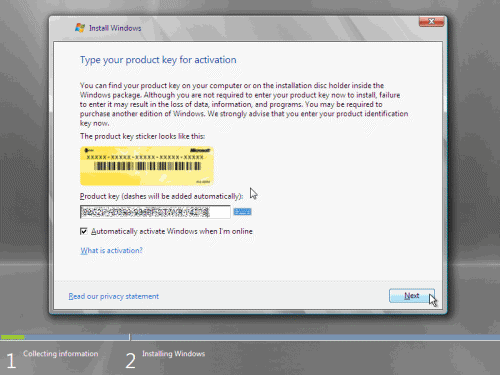
5. Product activation is now also identical with that found in Windows Vista. Enter yourProduct ID in the next window, and if you want to automatically activate Windows the moment the installation finishes, click Next.

If you do not have the Product ID available right now, you can leave the box empty, and click Next. You will need to provide the Product ID later, after the server installation is over. Press No.

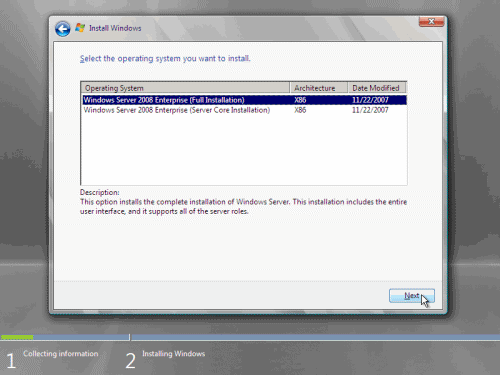
6. Because you did not provide the correct ID, the installation process cannot determine what kind of Windows Server 2008 license you own, and therefore you will be prompted to select your correct version in the next screen, assuming you are telling the truth and will provide the correct ID to prove your selection later on.

7. If you did provide the right Product ID, select the Full version of the right Windows version you're prompted, and click Next.


8. Read and accept the license terms by clicking to select the checkbox and pressing Next.

9. In the "Which type of installation do you want?" window, click the only available option –Custom (Advanced).

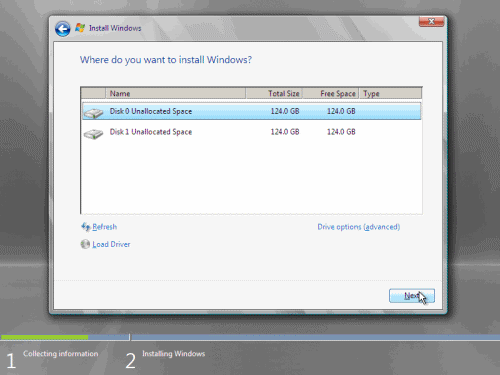
10. In the "Where do you want to install Windows?", if you're installing the server on a regular IDE hard disk, click to select the first disk, usually Disk 0, and click Next.

If you're installing on a hard disk that's connected to a SCSI controller, click Load Driver and insert the media provided by the controller's manufacturer.
If you're installing in a Virtual Machine environment, make sure you read the "Installing the Virtual SCSI Controller Driver for Virtual Server 2005 on Windows Server 2008"
If you must, you can also click Drive Options and manually create a partition on the destination hard disk.
11. The installation now begins, and you can go and have lunch. Copying the setup files from the DVD to the hard drive only takes about one minute. However, extracting and uncompressing the files takes a good deal longer. After 20 minutes, the operating system is installed. The exact time it takes to install server core depends upon your hardware specifications. Faster disks will perform much faster installs… Windows Server 2008 takes up approximately 10 GB of hard drive space.

The installation process will reboot your computer, so, if in step #10 you inserted a floppy disk (either real or virtual), make sure you remove it before going to lunch, as you'll find the server hanged without the ability to boot (you can bypass this by configuring the server to boot from a CD/DVD and then from the hard disk in the booting order on the server's BIOS)
12. Then the server reboots you'll be prompted with the new Windows Server 2008 type of login screen. Press CTRL+ALT+DEL to log in.

13. Click on Other User.

14. The default Administrator is blank, so just type Administrator and press Enter.

15. You will be prompted to change the user's password. You have no choice but to press Ok.

16. In the password changing dialog box, leave the default password blank (duh, read step #15…), and enter a new, complex, at-least-7-characters-long new password twice. A password like "topsecret" is not valid (it's not complex), but one like "T0pSecreT!" sure is. Make sure you remember it.

17. Someone thought it would be cool to nag you once more, so now you'll be prompted to accept the fact that the password had been changed. Press Ok.

18. Finally, the desktop appears and that's it, you're logged on and can begin working. You will be greeted by an assistant for the initial server configuration, and after performing some initial configuration tasks, you will be able to start working.

Tuesday, November 26, 2013

Best Android Emulator for PC (Windows 7/8 and Mac)

Almost all of are using an Android phone. But do you guys know you can install Android emulator in your PC also whether it’s a Windows device or a MAC device. Yes, its possible to download best Android Emulator for PC available for Windows 7,8 as well as Mac OS X. It provides you all those facilities which you get in your phone. It allows you to search, download and install various games and applications.  Downloading and installing it will give a new face to your device.
Here arise a question that which is the best Android Emulator for your device? So, here I am with the list of it which is really best for your device i.e Windows 7, Windows 8 as well as Mac.
List of Best Android Emulator for MAC device:
Below I have given a really short review for Top Android Emulator for Mac OS X Computer system. Please have a look.
1) Virtual Box is the most famous Emulator for Android Apps available in the market for MAC device. The feature like simple UI, search, download and installation makes it more useful. And the amazing fact is that it’s totally free of cost.

Note : You need to Install the new OS in Virtual Machine, well this is indeed a long tutorial which you will surely find in internet.
2) Bluestacks- This is another popular name in the world of Android Emulator. Like Virtual Box it is also very easy to use. You just have to install it properly and after that everything will be under your control. You can download Bluestacks for PC from here

Top Android Emulators for PC (Windows 7/8)
Well, below I have given out one really nice list of reviewed software which you will surely love.
1) Bluestacks for Windows OS
Bluestacks is the first most name for the Best Android Emulator for Windows device. Yes, I have mentioned the name of it before for the Mac device which is also available in the market for Windows device.
2) Jar of Beans
Then here comes the second name, Jar of Beans. It is quite easy to install and use. Most of Top Android Emulators doesn’t allow you to play Jelly Bean games. It is specially designed to support Jelly Bean games.


3) Youwave
Here is the third most popular name of Android Emulator for Windows device, YouWave. It helps you out to search different kinds of applications and games easily. It is one of the well-known Emulators. Note : YouWave is premium software available for Windows 7/8 as well as Mac but its quality is just immense.

So, these were the list of best Android Emulator for PC or Windows device and MAC device respectively.
Hopefully, I have succeeded in providing you exact and correct information about these Android Emulator. Now, you will be able to choose the best Emulator for your device. So, why are you guys waiting for? Just move on and download an really nice Android Apps Emulator for your PC and enjoy the features of Smartphone on your PC itself. Those who love using different applications and playing different games will definitely going to love these software.  

Sunday, July 21, 2013

Prepare for Windows 8 Even Though It's Not Coming to Enterprises

Windows 8 won't be adopted as a standard at your business anytime soon, according to a new Forrester report. But that doesn't mean IT shouldn't prepare for it to sneak through the BYOD side door. Here are five ways to be ready for Windows 8. 


Windows 8, released to the wild last October, seems stuck in a no-win situation.
On the one hand, it is not catching on with Android- and iOS-loving consumers turned off by the Windows 8 tile-based interface and the Windows App Store, which by Android and Apple standards, is anemic and disorganized. And these days, consumer technology is frequently a precursor to enterprise technology as shown by the BYOD (bring your own device) phenomenon. 
On the other hand, the situation for Windows 8 isn't any better in the enterprise. IT decision-makers interviewed for a new Forrester report don't see the Windows 8 experience as an improvement over the stable and well-liked Windows 7, mostly due to confusing behavior between applications running in the "Metro" touch interface and those running in the traditional desktop mode.

In the report, entitled "IT Will Skip Windows 8 as the Enterprise Standard," IT professionals reveal that a top concern about Windows 8 is the "potential for significant user training and support and the need for application redesign to take advantage of the new Windows 8 interface."
Enterprise Still Working on Deploying Windows 7
Also working against Windows 8 adoption: Most enterprises are too caught up in Windows 7 migrations to focus on Windows 8. According to a separate Forrester survey of more than 1,200 IT decision-makers in the U.S. and Europe, 48 percent of current PCs are running Windows 7 and 76 percent of new PCs being deployed in the enterprise are running Windows 7.
"This doesn't mean enterprises will lock out Windows 8," writes report author and Forrester analyst David Johnson. "Some will support it for specific segments of employees, but it is not likely to displace Windows 7 as the platform standard."
Yet it would be a mistake for enterprise IT decision-makers to let Windows 8 slip off the radar. Despite enterprise IT trepidation, employees are more interested in Windows 8 than you might think.
Forrester's Forrsights Employee Survey in Q4 2012 showed that 38 percent of employees would prefer to use Windows 8 on their work computers, compared with 35 percent for Windows 7. Windows 8 may have a confusing user interface, but it is unquestionably more modern than the three-and-a-half-year-old Windows 7.

"Windows 8 opens up entirely new use cases for Microsoft customers," writes Johnson, "which will only gain momentum as the app ecosystem ramps up development and hardware vendors offer new designs that blend the lines between tablets and traditional PCs."
In short, IT should give employees freedom to work on Windows 8 PCs as the BYOD trends continues. Here are five ways enterprise IT should prepare, according to Forrester.
1. Complete Those Windows 7 Upgrades
Microsoft is ending extended support for Windows XP on April 8, 2014, so Forrester recommends that IT pros ignore the Windows 8 hype for now and finish enterprise-wide Windows 7 migrations.
"Rest assured that this laborious effort will ultimately pay off with greater compatibility if or when your organization decides to support Windows 8," writes Johnson. "If you're already on Windows 7 today, then consider adding incremental support for Windows 8 and new devices, starting with pilot groups to better manage the change."
If your organization is still on Windows XP and hasn't begun the migration to Windows 7, then a Windows 8 migration is worth a look, but you must consider the broad effect it will have on your employees and applications, writes Johnson.
"If you find it's manageable, then moving to Windows 8 will put you ahead of the curve."
2. Get a Formal BYOD Policy in Place
Whatever Windows 8 adoption demand there is, it's coming mostly from employees, so it's a good idea to formalize your BYOD policy and begin with a pilot program that helps you figure out which employees are the best fit for a BYOD initiative. 
"Early BYOD programs focused exclusively on smartphones and tablets but it's inevitable that they extend to Macs and PCs, and Windows 8 may serve as the start for PC inclusion," according to Forrester.

3. Move Your Apps to the Cloud and Embrace Open Web Standards
Most of the cost and labor of an OS migration involves taking inventory of all your apps and testing for compatibility. If application developers shift apps to the cloud quickly, it will reduce future migration efforts while providing employees with better access and more devices.
Forrester also encourages the development of apps on open web standards such as HTML5 instead of for specific browsers like IE, Chrome or Firefox.
4. Expand Use of App and Desktop Virtualization
Client virtualization technologies-hosted and local -can speed up BYOD programs by allowing IT to provide a managed environment on personal devices. App virtualization also takes incompatible legacy applications out of the picture by detaching them from the hardware and OS and putting them in a virtual machine, thus giving employees more flexibility.
5. Organize a Pilot Program to Test Windows 8 Hardware
Begin with a small pilot group of workers, each of whom represents the company's different business units. Forrester recommends that companies buy and distribute all the different Windows 8 devices such as tablets, ultrabooks and all-in-ones. Match the form factor with specific worker needs and collect feedback sooner rather than later.

Featured Post

Biggest mysteries in the Universe

The Universe is a mysterious place. Here are some of the biggest mysteries, quandaries and secrets about space that remain unsolved.   From ...

Contact Form

Name

Email *

Message *

hilltopads_vast3

Autoplay VAST 3.0 Ad

surfepro_mobile